
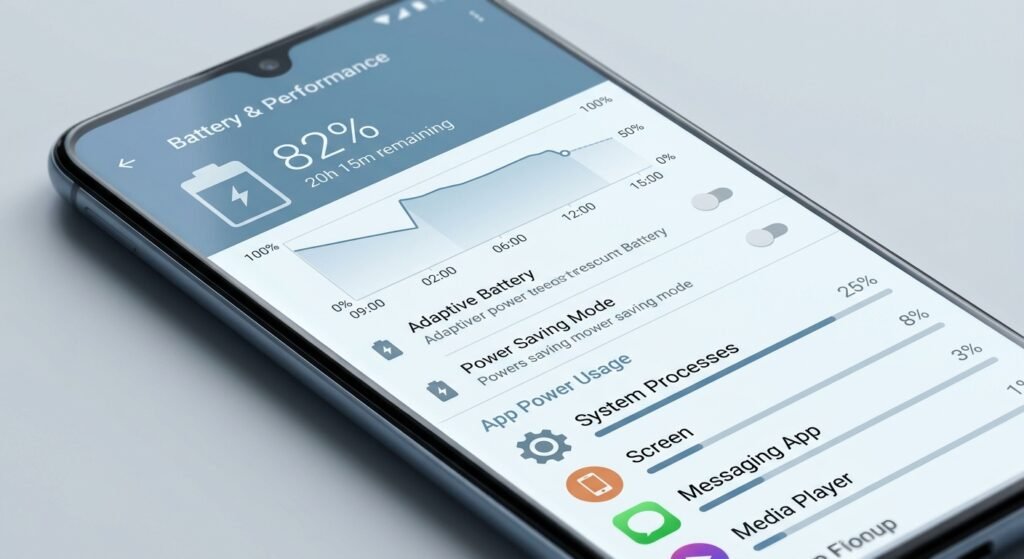
It’s 3 p.m., your phone is at 22%, and an app takes a beat too long to open. Most people assume the phone is getting old and start pricing replacements. Often, though, a few hidden smartphone settings are quietly draining power and slowing things down.
This guide covers the hidden smartphone settings worth checking on both iPhone and Android, with steps you can finish in about 15 minutes. Menu names differ between brands and software versions, so if you can’t find a setting, use the search bar at the top of your Settings app.
Why Hidden Smartphone Settings Affect Battery and Speed
Your phone does a lot while you’re not looking. Apps refresh in the background, GPS pings your location, and the screen may run at its highest refresh rate. None of it is broken, but all of it costs battery and processing power.
Default settings are tuned for the best out-of-the-box experience, so many people never change them. A few adjustments can make a noticeable difference.
Hidden Smartphone Settings That Save Battery
Limit Background Activity
Apps you haven’t opened in days may still be refreshing content and syncing data.
- iPhone: Go to Settings > General > Background App Refresh and turn it off for apps that don’t need live updates, such as shopping or game apps.
- Android: Open Settings > Apps, pick an app, and look for Battery or Background usage. Set rarely used apps to “Restricted” or “Optimized.”
Google’s guide to getting the most life from a Pixel phone battery recommends keeping battery optimization on for most apps and restricting only the ones with heavy background drain. Keep background refresh on for messaging and navigation apps so you still get those notifications.
Adjust Your Screen Refresh Rate
Many recent phones offer 90Hz or 120Hz screens. They look smooth, but they use more power than a standard 60Hz display. If your phone offers an adaptive or “standard” option under Display settings, try it for a few days. Many people barely notice the difference in everyday use, and the battery often lasts longer.
Shorten Screen Timeout and Trim Always-On Features
The screen is usually the biggest battery drain. Setting the timeout to 30 seconds instead of two minutes helps, and so does turning off Always-On Display if you rarely glance at it. Lower brightness, or auto-brightness, adds to the savings.
Use Dark Mode on OLED Screens
On an OLED display, which many newer iPhones and Android flagships have, dark mode can reduce power use because black pixels draw very little energy. On an LCD screen, the benefit is minimal, so check your phone’s specifications first.
Set Location Access to “While Using”
Many apps ask for constant location access when they only need it while open. In your location or privacy settings, change apps from “Always” to “While Using the App.” Weather, shopping, and social media apps rarely need to track you all day.
Turn On Low Power Mode or Battery Saver Early
Low Power Mode on iPhone and Battery Saver on Android both reduce background activity and some visual effects. Most people wait until they’re in the red. You can switch it on earlier if you know you’ll be away from a charger. On Pixel phones, Battery Saver can also turn on automatically at a percentage you choose.
Hidden Smartphone Settings That Make Your Phone Faster
Reduce Animations
Smooth transitions add tiny delays every time you open or close something.
- iPhone: Settings > Accessibility > Motion > Reduce Motion.
- Android: Turn on Developer Options (usually by tapping the build number in “About phone” seven times), then set Window animation scale, Transition animation scale, and Animator duration scale to 0.5x or off.
Your phone will feel quicker because it skips the animation, not because it’s processing faster. Many people prefer that.
Free Up Storage
A nearly full phone tends to slow down because it has less room for temporary files and updates.
- Check your storage screen to see what’s taking up the most room.
- Delete apps you haven’t opened in months.
- Move photos and videos to cloud storage or your computer.
- Clear the cache for large apps like your browser or social media apps.
On iPhone, “Offload Unused Apps” removes an app but keeps its data, so you can reinstall it later without losing anything.
Turn Off Auto-Play Videos
Social media apps often play videos automatically, using data, battery, and processing power. Look in each app’s settings for an auto-play option and set it to Wi-Fi only or off.
Keep Your Software Updated
Updates often include performance improvements and bug fixes, including fixes for battery drain caused by software glitches. Turn on automatic updates for your operating system and apps.
A Realistic Example
Imagine someone whose phone barely lasts until dinner. Their battery usage screen shows a shopping app and a social media app using a big share of power, mostly in the background. They restrict background refresh for both, switch location access to “While Using,” and drop the screen timeout to 30 seconds. None of it is dramatic, but together the changes can add noticeable hours. Your results will depend on your phone, your apps, and your habits.
Hidden Smartphone Settings for Gaming and Heavy Apps
If you play mobile games, your phone is working hard on graphics, network, and heat. Lowering graphics quality, closing unnecessary background apps, and keeping the phone cool all help performance. Games also get regular updates that change how they run. Our coverage of the Counter-Strike 2 update in 2026 shows how quickly game changes can affect what your hardware has to handle.
Common Mistakes When Changing Phone Settings
- Using “task killer” apps. Force-closing apps constantly can use more battery, since your phone has to reload them from scratch each time.
- Turning off everything. If you disable notifications and background activity for every app, your phone becomes less useful. Adjust selectively.
- Ignoring battery health. Batteries naturally lose capacity over time. On iPhone, Apple explains how to check Battery Health under Settings > Battery. If capacity is significantly degraded, a battery replacement may help more than any setting.
- Downloading unverified “booster” apps. Many add ads or ask for unnecessary permissions. Your phone’s built-in tools are usually enough.
- Skipping restarts. Restarting once in a while clears temporary glitches and can restore smooth performance.
Quick Checklist
- Restrict background refresh for apps you rarely use.
- Set location access to “While Using” for non-essential apps.
- Shorten screen timeout and consider an adaptive refresh rate.
- Reduce animations for a snappier feel.
- Clear storage and remove unused apps.
- Keep your system and apps updated.
- Check battery health once in a while.
Final Thoughts
A slow or short-lived phone isn’t always a dying phone. Reviewing these hidden smartphone settings costs nothing, and you can undo any change you don’t like. Start with the two or three that fit your habits, watch how your battery behaves for a few days, and adjust from there.