
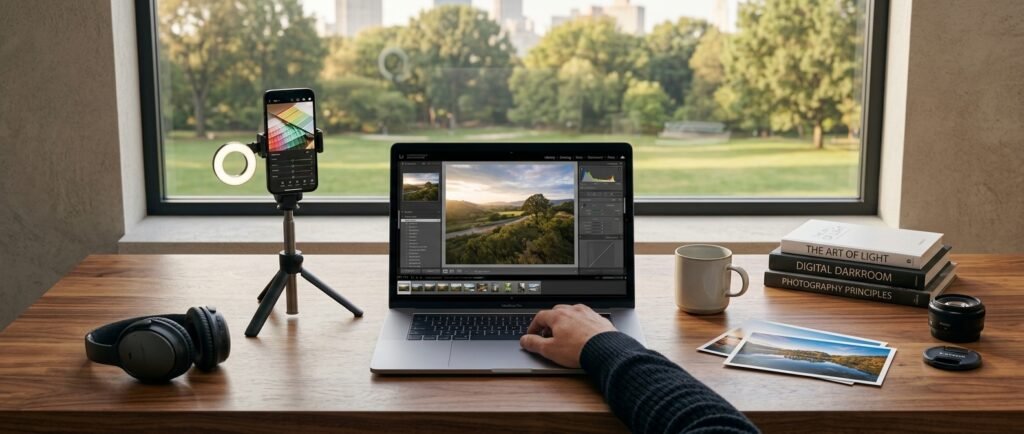
You take a photo you love, but the lighting is a little dull, the horizon is tilted, and someone’s elbow is sneaking into the corner. You know a quick edit could fix it. Then you open the app store or search online and face hundreds of options, with half hiding useful features behind a paywall. The right free photo editing tools can fix all of that in minutes.
This guide narrows the field. Below are the websites and apps worth trying, what each does best, and how to choose the one that fits your workflow.
How to Choose a Free Photo Editor
Before you download anything, decide what you actually need. A tool built for quick social posts is very different from one built for detailed retouching.
Ask yourself:
- Where do I edit? On a phone, a laptop, or both?
- What do I edit most? Portraits, product photos, landscapes, or social graphics?
- How much do I want to learn? Some tools are one-tap simple, others reward patience.
- What does “free” include? Many tools limit exports, features, or templates on the free plan.
Features and limits change often, so check each tool’s official page before you build a workflow around it.
Best Free Photo Editing Tools in Your Browser
Browser-based editors are handy because there’s nothing to install. They work on almost any computer, including older ones.
Canva
Canva is one of the most flexible free photo editing websites for non-designers. It’s a strong pick for social posts, thumbnails, banners, and flyers where the photo is one part of a bigger design. Some premium templates and tools sit behind a paid plan, so look for the free label before you commit to a design.
Photopea
Photopea is a browser-based editor with a layout that feels familiar to anyone who has seen professional layer-based software. It supports layers, masks, and a wide range of file types, which makes it a good step up once simple filters stop being enough. The learning curve is steeper, but the control is real. The free version is supported by ads.
Pixlr
Pixlr offers both quick-edit and more advanced options in the browser. It’s a good middle ground for people who want more than a filter but less complexity than a layer-based editor. Some features require a paid plan, so test the free version first.
Fotor
Fotor combines basic adjustments, collage tools, and design templates in one place. It’s beginner-friendly, though certain tools are limited to paid users.
Best Free Photo Editing Apps
Phone apps make sense when your photos already live on your phone. If you’re still working on the shooting side, our guide to mobile photography tips is a handy companion, though for sharing advice specifically, see the section on social posting below.
Snapseed
Snapseed is a free editor from Google known for precise tools like selective adjustments, healing, and perspective correction. It’s a favorite for people who want detailed control without a subscription. The tools aren’t labeled in the most obvious way, so give yourself a few sessions to explore.
Adobe Lightroom Mobile
Lightroom Mobile has a free tier with core editing tools such as exposure, color, and cropping. It’s excellent for building a consistent look across a set of photos. Advanced features like some selective edits and cloud storage options are tied to paid plans.
Photoroom
Photoroom is designed around background removal and clean product images. If you sell items online or make simple promotional graphics, it can save a lot of time. Free plans typically include limits or watermarks on some exports, so review the details first.
Desktop Option: GIMP
GIMP is free, open-source software for Windows, macOS, and Linux. It offers layers, retouching tools, and plenty of customization, with no subscription involved. It takes time to learn, but it’s one of the few truly free desktop editors with serious depth.
Which Free Photo Editing Tool Should You Pick?
| If you want to… | Try… |
|---|---|
| Make social graphics fast | Canva |
| Edit with layers in your browser | Photopea |
| Do quick edits with extra options | Pixlr or Fotor |
| Fine-tune photos on your phone | Snapseed or Lightroom Mobile |
| Remove backgrounds for products | Photoroom |
| Get full desktop control for free | GIMP |
Practical example: Say you run a small handmade candle shop. You might shoot product photos on your phone, clean the background in Photoroom, brighten them in Snapseed, then drop the final images into a Canva template for Instagram. Three free tools, one simple workflow.
A Simple Editing Routine for Beginners
You don’t need to touch every slider. This order works for most photos:
- Crop and straighten. Fix the composition first.
- Set exposure. Make the overall image brighter or darker.
- Adjust contrast. Add a touch of depth, not drama.
- Fix color. Correct any odd color cast, then tweak warmth gently.
- Remove distractions. Use a healing or clone tool for small blemishes or stray objects.
- Sharpen lightly. A small amount is enough.
- Export at the right size. Match the platform you’re posting to.
Common Mistakes to Avoid With Free Photo Editing Tools
Over-editing. Heavy saturation, extreme contrast, and strong filters usually look worse than the original. If the edit is the first thing people notice, dial it back.
Editing without a plan. Pick a consistent style, such as bright and airy or warm and moody, so your work looks cohesive.
Ignoring export settings. Saving at low quality, or at the wrong size, can make a good edit look soft or pixelated.
Overwriting originals. Always keep an untouched copy so you can start over.
Downloading from unofficial sources. Stick to official free photo editing websites and app stores.
Skipping the fine print. Check each tool’s terms for watermarks, usage rights, and how your uploaded images are handled, especially if you edit client or commercial work.
Using Your Edits Beyond Photos
Once your images are polished, think about where they’ll appear. Cropping and styling matter more when your photos land on social platforms, and our roundup of Instagram tips and tricks most users never discover can help you get more out of every post.
Many creators eventually move from stills to short video. If that’s you, our list of the best free video editing apps for Reels and Shorts is a good next step, and these video editing tricks for professional-looking clips will help your footage match the quality of your photos.
Final Thoughts
The best free photo editing websites and apps are the ones you’ll actually open and use. Start with one browser tool and one phone app, learn their basics, and resist the urge to collect ten editors you never master. As your skills grow, you’ll know exactly which features you’re missing and whether a paid upgrade is worth it or a free tool already does the job.

